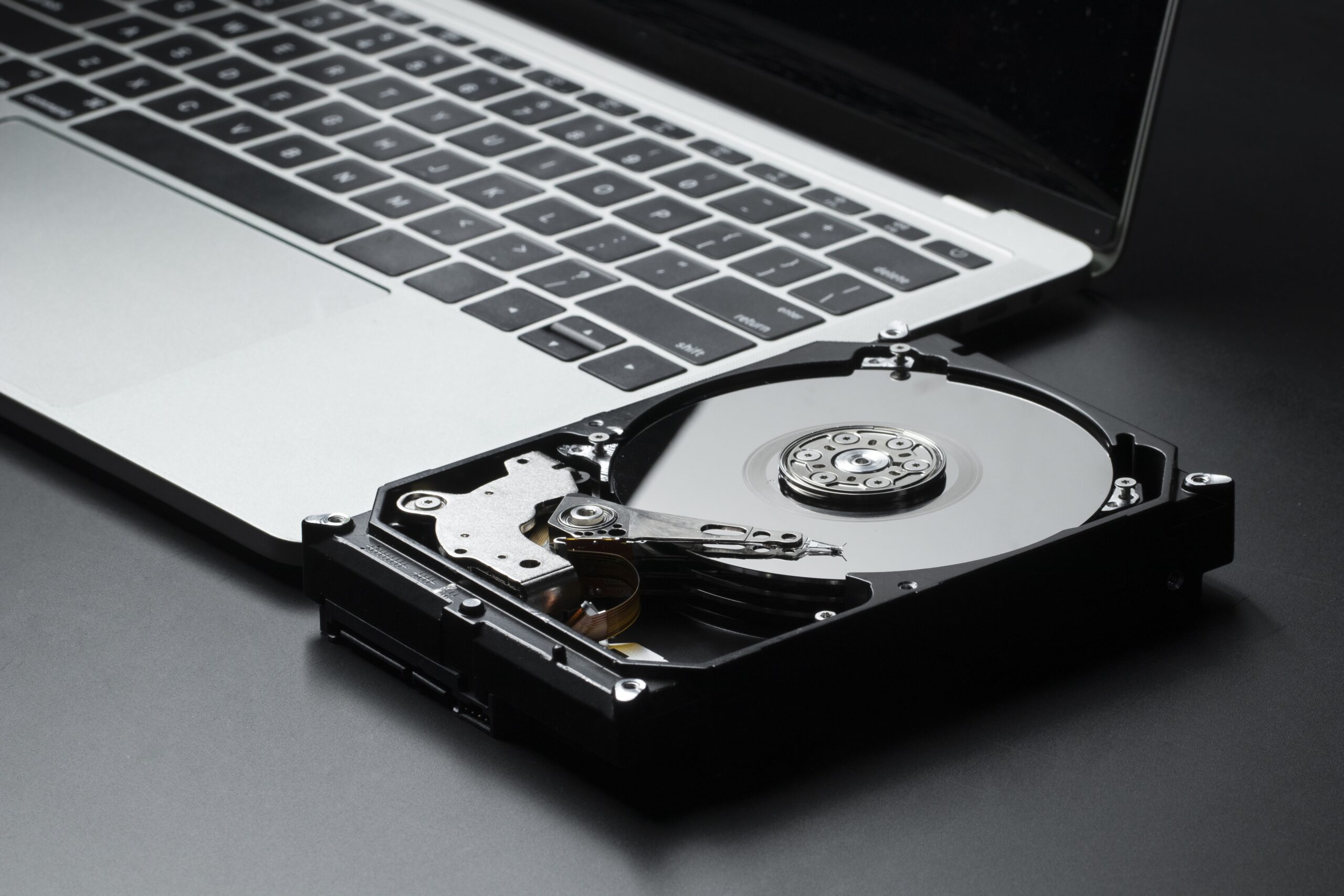
In this article, we’ll look at how to resolve common problems that can arise when using an external hard drive and how to recover files from a damaged external hard drive.
How to know if your hard drive is broken or damaged?
Using an external hard drive is very convenient for moving files from one place to another without moving your computer. This means working from home or the office, for example, or while traveling. This is precisely why external hard drives are very delicate, as they are exposed to shock or temperature fluctuations. Although external hard drives are constructed with great care, their constant use and transport can cause some damage to their hardware.
Another problem we may encounter is the presence of viruses or malware that prevent the correct functioning and corruption of data on the disk.
Finally, there’s a common mistake that leads to the need to recover a damaged external hard drive : accidental formatting. In this case, we might think the drive is faulty, but in reality, we’ve accidentally formatted or overwritten the files.
Typically, there are some signs that your external hard drive is damaged or unreadable. These include constant overheating, noises while the system is trying to read the disk, delays in opening files, or slow transfers.
At some point, however, we’ll find ourselves unable to open the files we’ve archived. Or even the computer will no longer recognize or access the external drive.
This is evidence that some partitions on the disk have deteriorated or been affected by viruses and you need to proceed with recovery of the damaged external hard disk to avoid losing all its contents.
However, to be sure, we can do some tests.
How to Check for a Corrupted External Hard Drive on Windows
Windows users can access the command prompt by typing cmd in the taskbar, then selecting Command Prompt to open it.
Now type wmic diskdrive get status and press Enter.
The system returns the Status value OK , meaning everything is fine. If it returns the value Pred Fail, however , it means we are dealing with a damaged external HD .
How to Check for a Corrupted External Hard Drive on Mac
Those with a Mac OS operating system can check the external drive by going to the taskbar, selecting Utilities and then selecting External Hard Drive.
At this point you will find the Status, which can be Verified when everything is fine and working, or Error when there are damages or unreadable files.
How much does it cost to recover data from a damaged or unreadable external hard drive?
How do we recover files from a damaged external hard drive ? Many people turn to technical recovery services that perform a disk check, verifying both the hardware and software. These services are very effective, and there’s sure to be one in your area.
Naturally, this service has a cost that in Italy can vary from 100 to 450 euros depending on the damage suffered and the work required to recover the damaged external drive.
The problem is that a high-quality external drive can cost around 100 euros, so it’s not always worth paying that much to recover a damaged external hard drive . In fact, what we’re most interested in is recovering damaged files from the external hard drive.
Computer experts recommend recovering your files and disk if the problems are related to software, viruses, or accidental formatting.
If the problem is hardware-related and physical disk repair is too expensive, the most cost-effective option is to recover the files from the damaged disk and copy them to a brand new disk.
How to recover data from a damaged external hard drive?
Let’s see how to read a damaged external hard drive and recover the data inside. To do this, we can use Tenorshare 4DDiG , a software specialized in file and data recovery in various types of scenarios and currently considered the best program for recovering files from a damaged external hard drive .
Tenorshare 4DDiG works on both Windows and Mac, let’s see its main features:
- Recover all types of files including videos, photos, audio files and documents in various formats.
- It also works in case of formatting or virus attack.
- Recover files even after system crash or CPU failure
How to Recover Data from a Corrupted External Hard Drive with Tenorshare 4DDiG
First of all, download the Tenorshare 4DDiG version according to your operating system: Windows or Mac.
Once downloaded, you can proceed to the following steps:
- Launch Tenorshare 4DDiG and select the external hard drive you want to check.

- Start scanning the drive and wait until it completes

- At the end of the scan the software detects all the files, including the damaged or lost ones and shows you a preview.

- From the list of scanned files you can select the ones you want to recover.
Conclusions
Data recovery from a damaged external drive is a necessary and highly requested operation due to the increasingly frequent use of this type of device.
Continuous use of your external hard drive under various conditions can cause it to fail and corrupt your files, so it’s important to know how to check if an external hard drive is damaged and how to recover data.
For this, we have seen how to proceed with data recovery from a damaged external hard drive with Tenorshare 4DDiG on Windows and Mac in a few simple steps.